Dashboard
When you sign in, you land on your Dashboard — your daily summary view.
If you see We couldn’t restore your session yet, check your connection and choose Try again to reload the page. Your saved sign-in is kept. If the session finishes loading while you wait, you’ll continue automatically.
If your account signs in but the workspace cannot finish loading, choose Try again to restart the workspace check. Choose Sign out to return to the workspace selector if the problem continues.
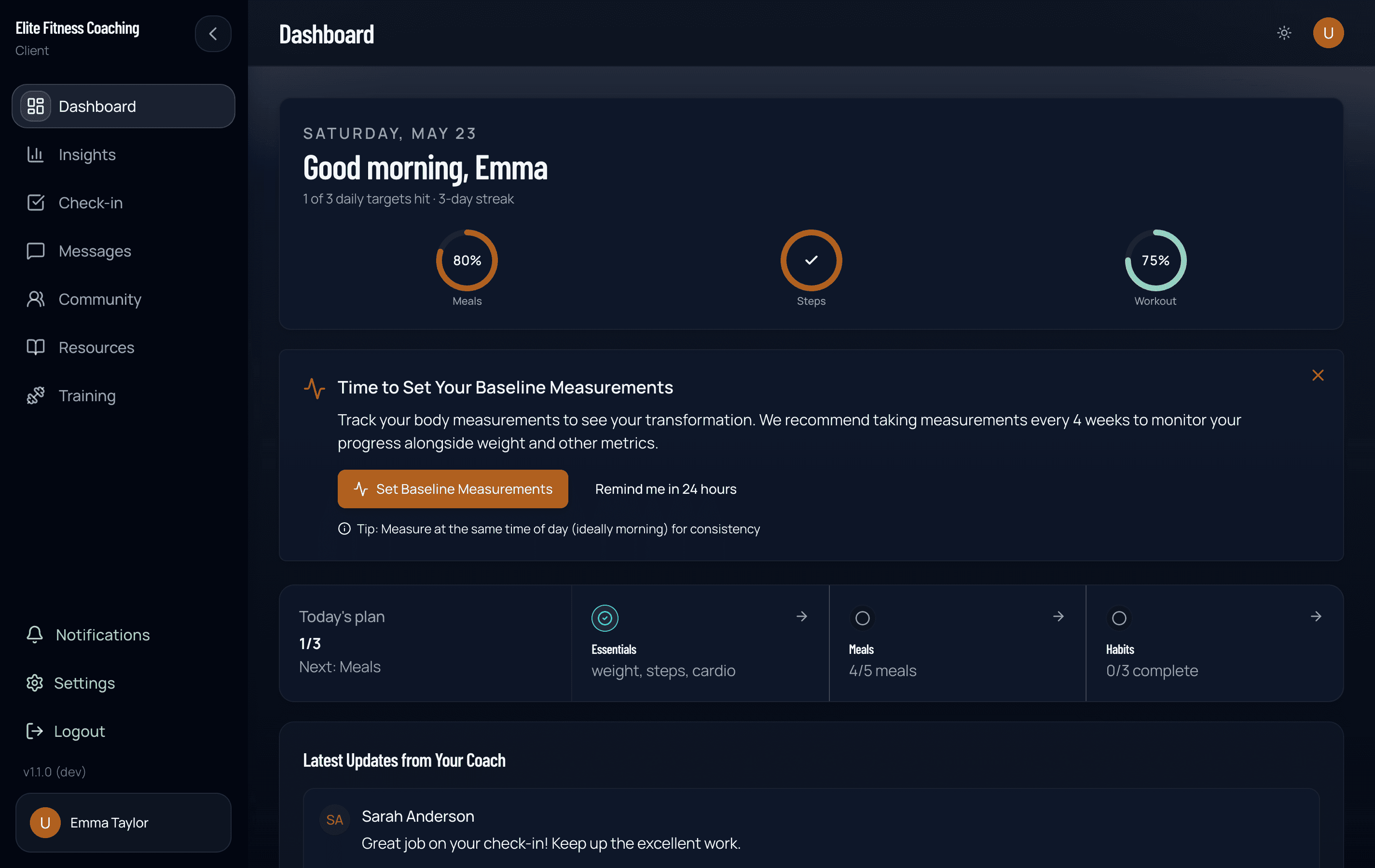
From the dashboard, the navigation has these main sections:
- Dashboard — today’s view, quick logging
- Meals — today’s meal plan and food log
- Exercises — your assigned training program
- Insights — your own analytics, weight trend, photos, habits
- Check-in — your weekly check-in form
- Messages — direct chat with your coach
- Recipe Books — collections your coach assigned
- Resources — articles, videos, files your coach has shared with you
- Community — group chats, leaderboards, challenges (if your coach has set them up)
- Settings — profile, notifications, integrations
On a phone the bottom tabs are Home, Meals, Train, Insights, and More. Messages, check-in, recipe books, and community stay under More — including while you are on those pages. The fourth tab stays Insights.
Today’s plan is the daily home meter. It lists today’s training, meals, habits, and activity when those items apply. If nothing is on the plan, you get one next step, such as messaging your coach. The score at the top counts the same rows you see — a rest day still appears and counts as done. The This week summary describes consistency as days with activity this week, so one missed day does not reset or erase the rest of the week. The weekly check-in row in that summary opens your check-in when it is due today or still open to catch up. During your first week it shows the date of your first check-in instead.
On phones, select Activity to open a dedicated logging view for steps, weight, and cardio. Choose one row to open its entry controls; opening another row closes the previous one so the active field stays above the keyboard. Use the header close button when you are finished.
The Meals view keeps quick macro entry and food search in the same full-height logging view. Use the header back button to return to your meal summary without closing Meals.
Logging weight
Log your weight from the Dashboard or Check-in. Each entry is a single weigh-in for the day. If you add a note on Add Progress Entry, your coach sees it on that day’s log. Most clients weigh in daily and the platform smooths over the noise; some coaches prefer once a week — follow your coach’s guidance.
How often you’re prompted is set by your coach. Depending on their setup, the weight card may appear every day, only around your weekly check-in (from your check-in day through the end of that week, or through Monday if your check-in day is Sunday), or not at all — if you don’t see it, your coach is tracking weight for you another way.