Dashboard
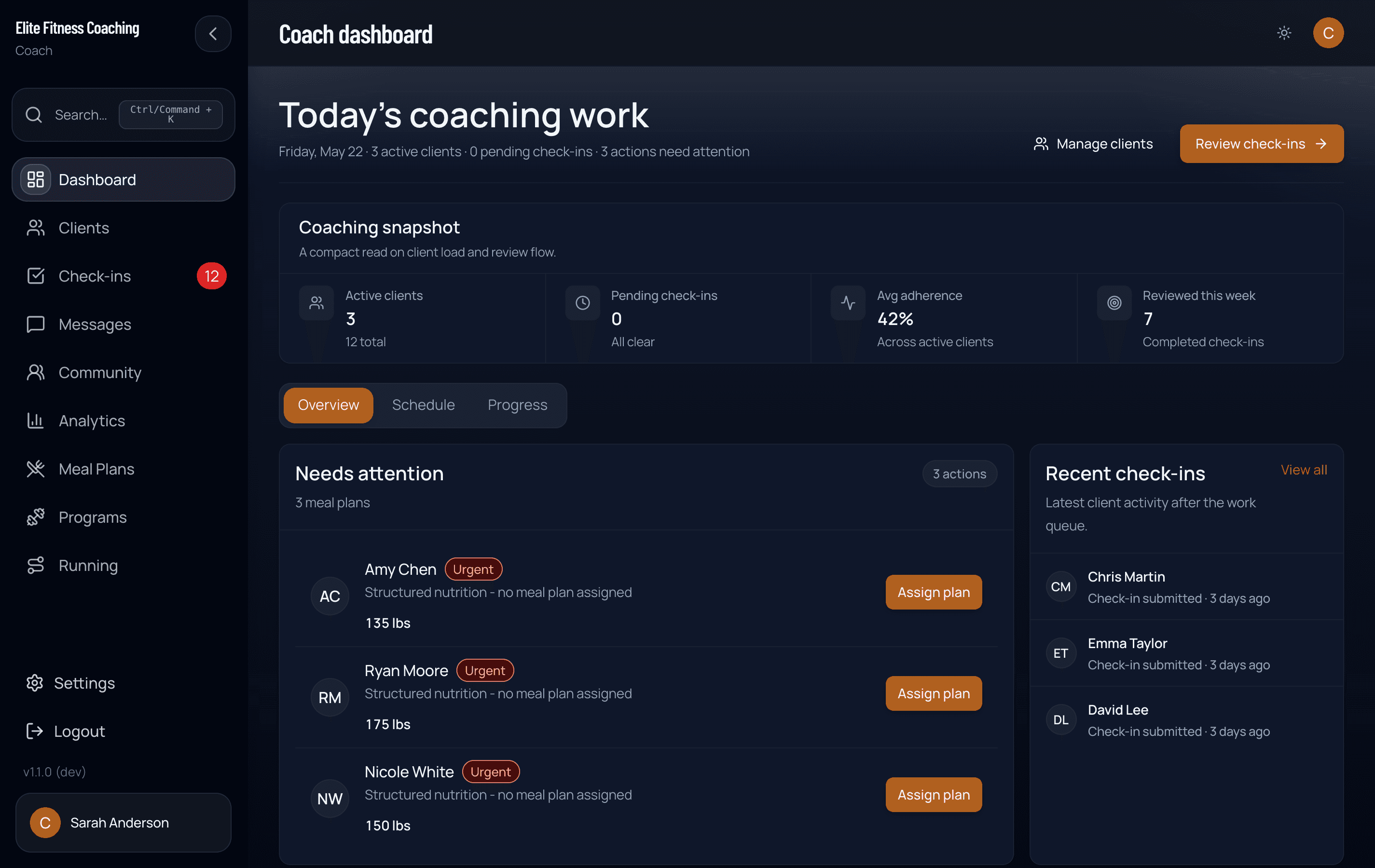
The coach dashboard is your landing page after sign-in. It’s a single screen designed to answer “what needs my attention today?” — so the surfaces are skewed toward action items rather than passive metrics.
Coach → Dashboard (or just sign in).
Header
The header shows today’s date, a short coaching summary, and primary actions. The summary splits due today (clients whose check-in day is today who have not submitted yet) from pending review (submitted check-ins waiting for your feedback). When PT Mode is available on your plan, a PT mode button sits next to the greeting so it is easy to find on phones and tablets. Tap it to open the PT sessions drawer: resume an active session, pick clients to train, or scan a client’s QR code.
See Training → PT Mode for the full PT flow.
Check-ins overview
A card under the header shows two separate counts so they never look like the same number:
| Metric | What it means |
|---|---|
| Due today | Clients whose assigned check-in day is today and who have not submitted yet |
| Pending review | Check-ins already submitted and waiting for your feedback |
Pending review is the number on the Check-ins item in the sidebar and mobile nav. Due today is a different list — those clients still need to submit. Review now opens the Check-ins queue.
Snapshot stats
Four headline tiles sit above the tabs:
| Tile | What it shows |
|---|---|
| Active clients | Active client count, with total roster size below |
| Due today | Same due-today count as the check-ins overview |
| Workouts (7d) | Logged sessions in the last 7 days (same count as a client’s Workouts tab). The subtitle is assigned-program adherence when that is scored |
| At-risk clients | Items currently in the action queue |
Tabs
Three tabs sit below the stats:
Overview
Two side-by-side panels:
-
Action queue — clients that need a specific action from you today. The queue is built from four sources, in priority order:
- Check-in due today — the client’s assigned check-in day is today and they have not submitted yet. Submitted check-ins waiting for your reply live under Pending review, not in this row.
- No meal plan — client is on structured nutrition but has no plan assigned. “Urgent” tone — they can’t track until you assign one.
- No step target — daily step target hasn’t been set.
- No cardio program — no cardio assignments yet.
Each row has a one-tap action — Review jumps to the check-in modal, Assign plan opens the meal-plan assignment modal, Set target / Assign cardio open the corresponding adjustment modals. The queue shows the top four; the total count and a breakdown by type sit underneath.
-
Recent submissions — the most recent check-in submissions across your roster, with weight + last-check-in metadata. Tap a row to open the check-in.
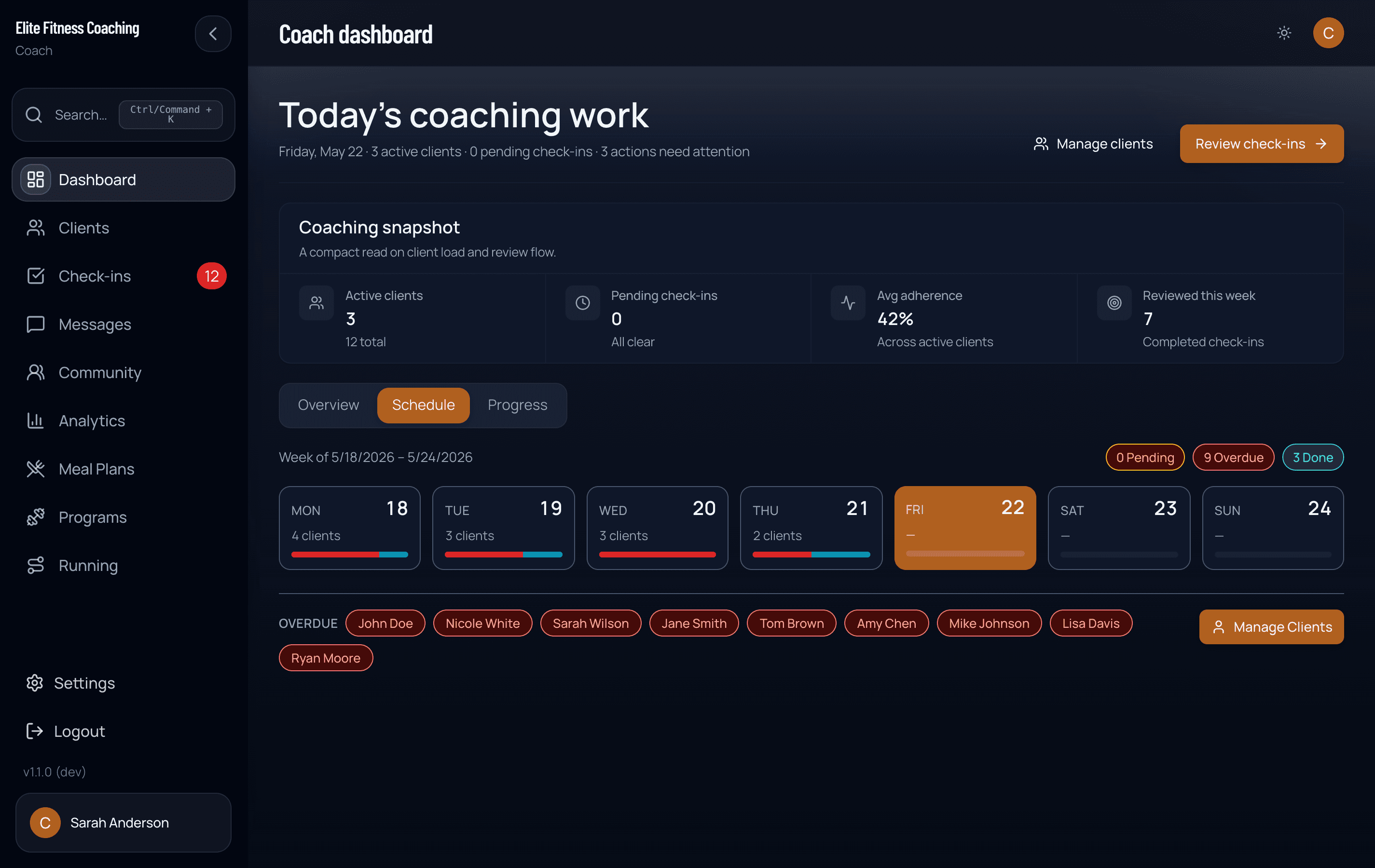
Schedule
A calendar view of upcoming check-in days for your roster. Useful for planning your week — see which days you’ll be reviewing and how the load is distributed.
For roster Plan Adherence and weight outcomes, use Analytics or open a client detail page.
Announcements
If your workspace admin has published any announcements (e.g. platform updates, scheduled maintenance, new features), they appear as a banner between the header and the stats tiles. Dismiss them per-coach — once dismissed they stay hidden for you specifically. See Setup → Announcements for managing them.
Adjustment modals
The action queue can open three quick-adjustment modals without leaving the dashboard:
- Step adjustment — set/change a client’s daily step target.
- Cardio adjustment — set/change cardio assignments.
- Meal plan assignment — assign one of your meal plan templates to a client missing a plan.
Each modal saves on submit and refreshes the dashboard in the background so the corresponding action item disappears from the queue.
Error and loading states
- Loading — while auth + dashboard data are fetching, a full-screen skeleton renders. There’s no “stale data while refresh in flight” mode; a full refresh always shows the skeleton.
- Error — if the dashboard data fails to load (network, permissions, etc.), an error panel offers a single Retry action that hard-reloads the page. The dashboard isn’t recoverable in-place — coaches who hit this consistently should sanity-check their session state and contact support.
What’s NOT on the dashboard
A few things you might expect that don’t live here: