Meal Plan
Most of what you do for nutrition is logging — recording what actually happened so your coach can see and respond.
On a phone, Meals is in the bottom tabs and opens today’s meal plan. Messages lives under More, with an unread badge when your coach has written back.
Meals & macros
How you log food depends on how your coach has you set up:
- Macros only — log total daily protein, carbs, fat, and calories, or log individual foods, without a prescribed meal plan
- Meal plan only — follow the meals your coach assigned and mark items as eaten
- Hybrid — follow the assigned plan and log extra foods or meals you ate on your own
Your coach may also assign Recipe Books — named collections you can browse. On macros-only or hybrid, you can log a recipe to today from the book.
If you’re on a meal plan from your coach, the plan shows up on the My Plan page with each meal pre-populated. Mark items as eaten as you go through the day. Meals stay in the order your coach scheduled them after you mark one complete. On hybrid, you can also add your own foods on that page or from the dashboard. Hybrid uses one daily calorie/macro tracker: meals you mark complete plus any extra foods you log, measured against the same daily targets your coach set. Marking a planned meal complete counts that meal once — extras are only foods you log separately.
When a meal includes a recipe, select View recipe beneath the meal to see the ingredients, prep and cooking times, and step-by-step directions without leaving the app. You can also print the recipe or open the original on FatSecret.
Your coach may use the same meals every day or schedule different meals for fixed weekdays. The app selects the right meals from the date you are viewing, including when you move across week or month boundaries.
On a meal-plan-only setup, daily totals compare the nutrition from meals you have marked complete with all meals planned for the date you are viewing. Lighter and higher-calorie days are measured against their own programmed meals, so completing every meal for that day shows the full plan as complete. On hybrid, that same daily totals strip is the combined tracker against your coach’s daily targets, not a second food-log bar. The calorie remaining chip (On Track, Hit, or Over) appears only after you have logged intake for that day — an empty day does not show On Track.
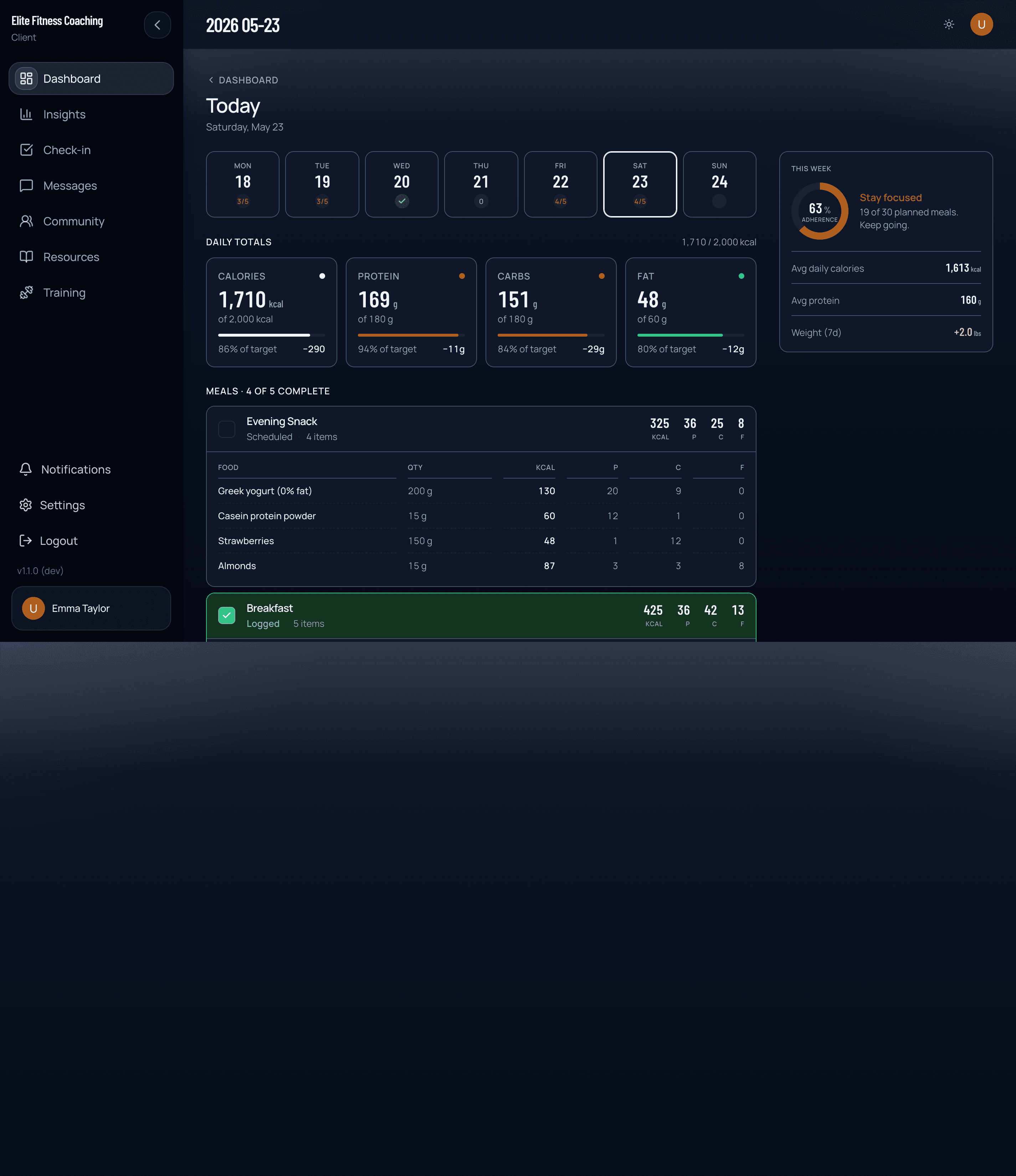
The weekly summary uses the number of meals planned on each individual date, then shows the exact number logged and remaining. It is progress information, not an overall grade such as “on track” or “behind.”
Barcode scanner
Scan packaged food barcodes to look up nutrition info directly. The scanner is a button in the food search; point your phone’s camera at the barcode and it auto-fills the food name and macros if it finds a match. Works best on the native iOS or Android app.
If you dismiss the camera prompt, tap Try camera again. If camera access is blocked, allow it in your device or browser settings, then reopen the scanner. You can enter the barcode manually while camera access is unavailable.
If a barcode doesn’t match, you can search by name or add a custom food.
Grocery list
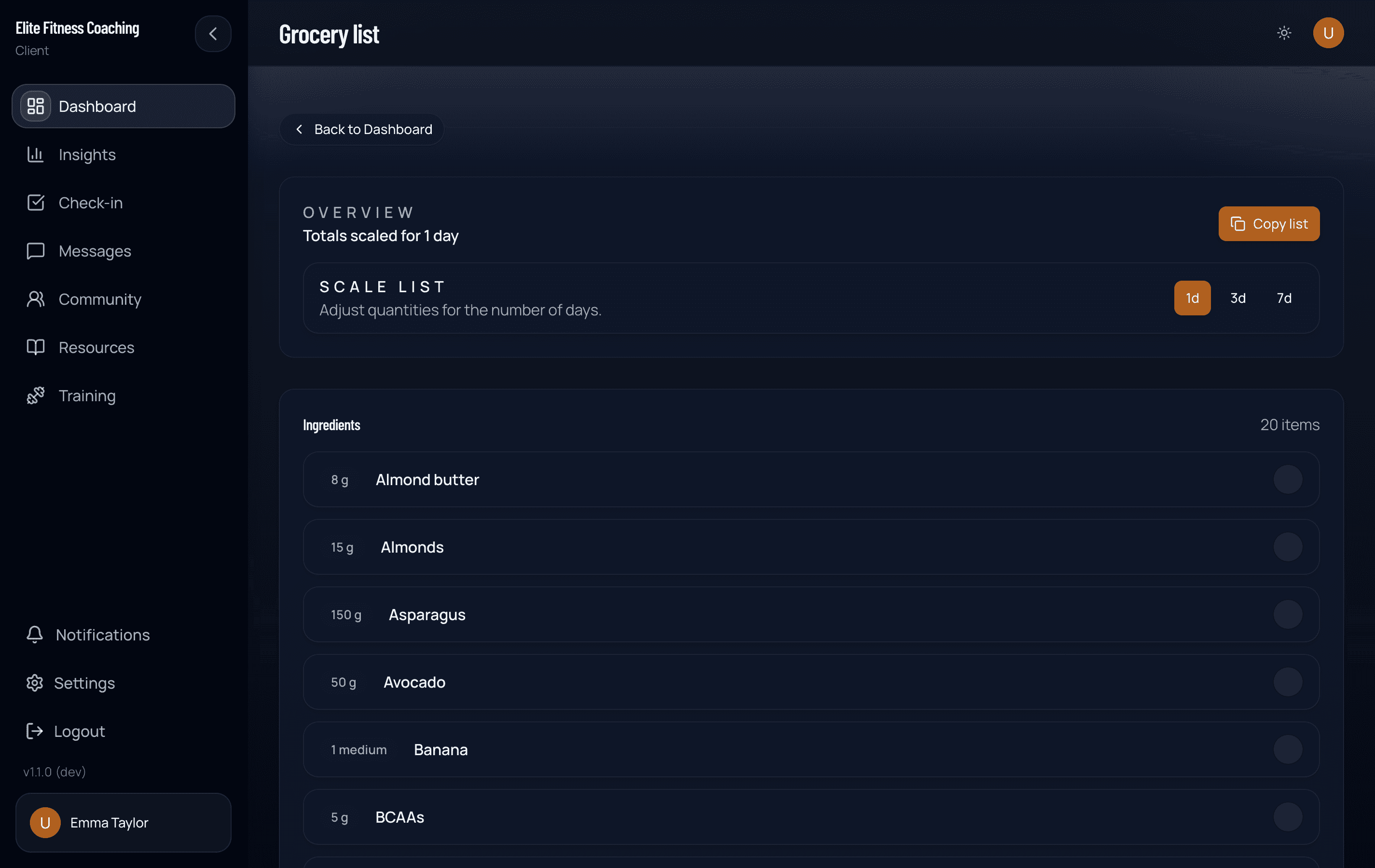
If you have a meal plan assigned, open Grocery list from the dashboard meal-plan card or any meal-plan day. The page builds a consolidated shopping list from the upcoming calendar days, deduplicating ingredients and combining quantities across meals. Recipe meals are expanded into their individual ingredients and scaled to the servings assigned in your plan, so the recipe name itself does not appear as something to buy.
- Period — pick 1d / 3d / 7d to include the meals scheduled for the next 1, 3, or 7 calendar days. For a fixed-weekday plan, each date contributes its own meals.
- Check off — tap the circle next to an item as you pick it up. Checked items drift to the bottom of the list so the remaining items stay easy to scan. Check state is local to that screen and resets when the meal plan changes.
- Optional ingredients — items the recipes mark as optional show in their own section beneath the main list.
- Copy list — copies a plain-text version of the list to your clipboard so you can paste it into Notes, Reminders, a grocery app, or share it. If copying is unavailable, the page lets you know instead of showing a false success message.
If one recipe cannot load temporarily, the rest of the grocery list remains available and a warning shows how many recipes are missing. Select Retry to load those ingredients again.
If no meal plan is assigned yet, the page shows an empty state with a link to browse plans.