Community
Community is the group-engagement surface for your workspace — team chats, leaderboards, and challenges. Coach → Community opens the hub.
The hub itself is a single page with three sections (team chats, challenges, leaderboards). Each section opens a drawer for detail or creation actions. Opening one drawer doesn’t close the others.
Community is opt-in. If you don’t create any team chats, challenges, or leaderboards, clients see an empty Community page (or no nav entry at all, depending on your workspace settings).
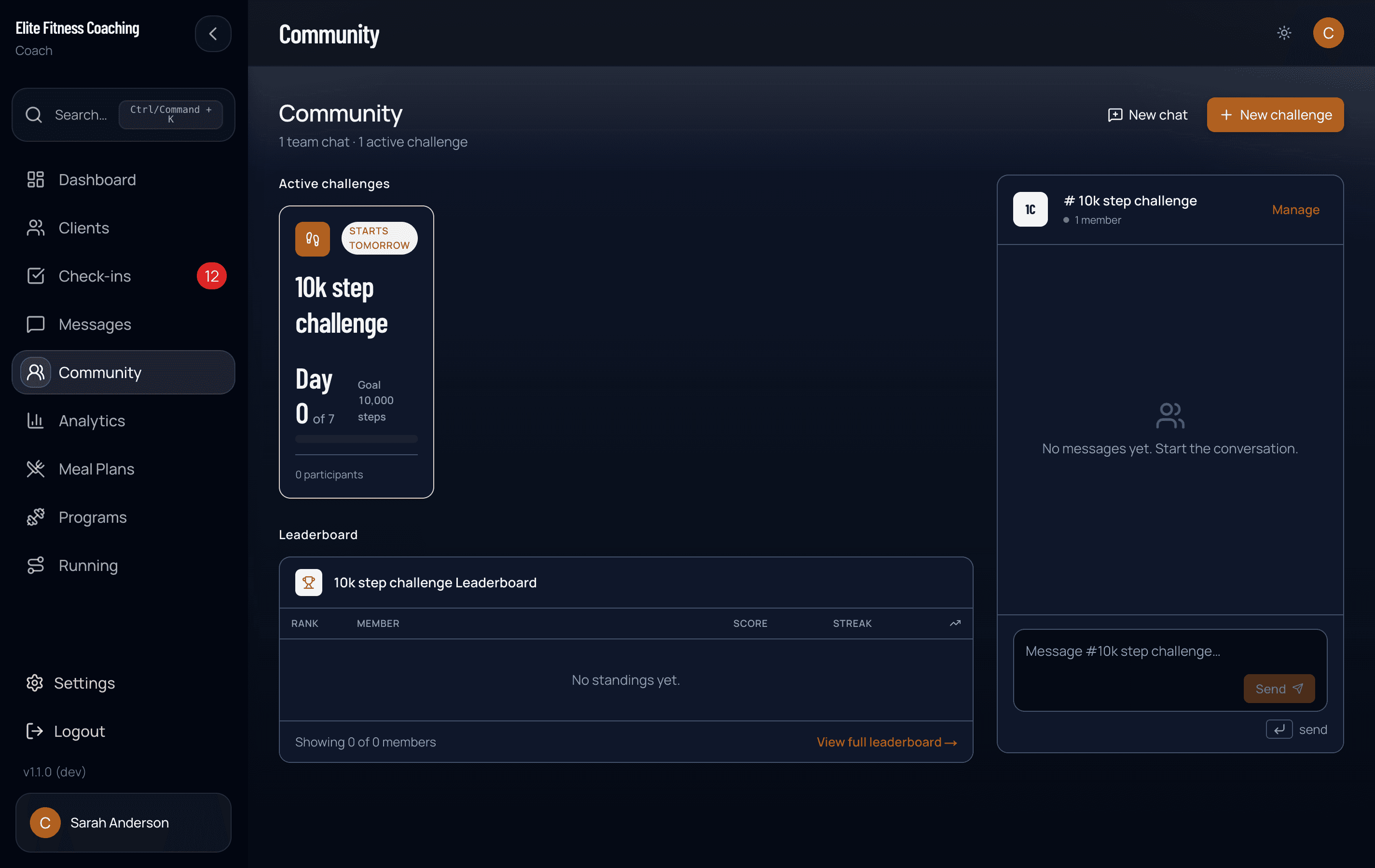
Team chats
A team chat is a group conversation that can include multiple coaches and clients. Use them for:
- Client cohorts (e.g. “January Cut Challenge”)
- Accountability groups
- Coach-to-coach team chat inside your workspace
Creating a team chat
The hub header has a New chat action (admin-coach only). It opens the create drawer, where you set:
- Chat name — public to members (e.g. “Morning Warriors”)
- Description — short blurb shown in the member list
- Members — pick from your roster (coaches and clients alongside each other)
Once created, the chat appears in the Community hub’s team chats list and in each member’s Messages page under Community mode.
Inside a chat
Team chats behave like the direct-message conversations from Messaging — text, quick send, and read state. There’s no audio or check-in message type inside a team chat (those are direct-only).
Challenges
A challenge is a time-bounded competition or goal you set for a group of clients.
Challenge types
Five built-in types and a custom escape hatch:
| Type | Default target | Unit |
|---|---|---|
| Steps | 10,000 | steps |
| Workout streak | 7 | days |
| Weight logging | 7 | logs |
| Macro compliance | 80 | % |
| Cardio minutes | 150 | minutes |
| Custom | — | coach-defined |
Creating a challenge
The hub header has a New challenge action (admin-coach only). The drawer collects:
- Name + description
- Type (one of the above)
- Goal target + unit — defaults filled in based on type; override per challenge
- Start and end dates
- Points per completion — what each client earns when they meet the daily target
- Bonus points (optional) — extra points for the 1st / 2nd / 3rd participant in each period
Challenges auto-track based on the data clients are already logging (steps from Health Connect / Apple Health, weight from weigh-ins, macros from daily logs, cardio from cardio entries, workouts from workout logs).
For a new Macro compliance challenge, the percentage you enter is the score clients need to reach across the whole challenge. Only complete nutrition days count toward the score, and days without complete logs remain part of the challenge window. This prevents one well-logged day from looking like a perfect challenge. These challenges are available to clients with direct macro targets, not structured meal-plan assignments.
Joining and leaving
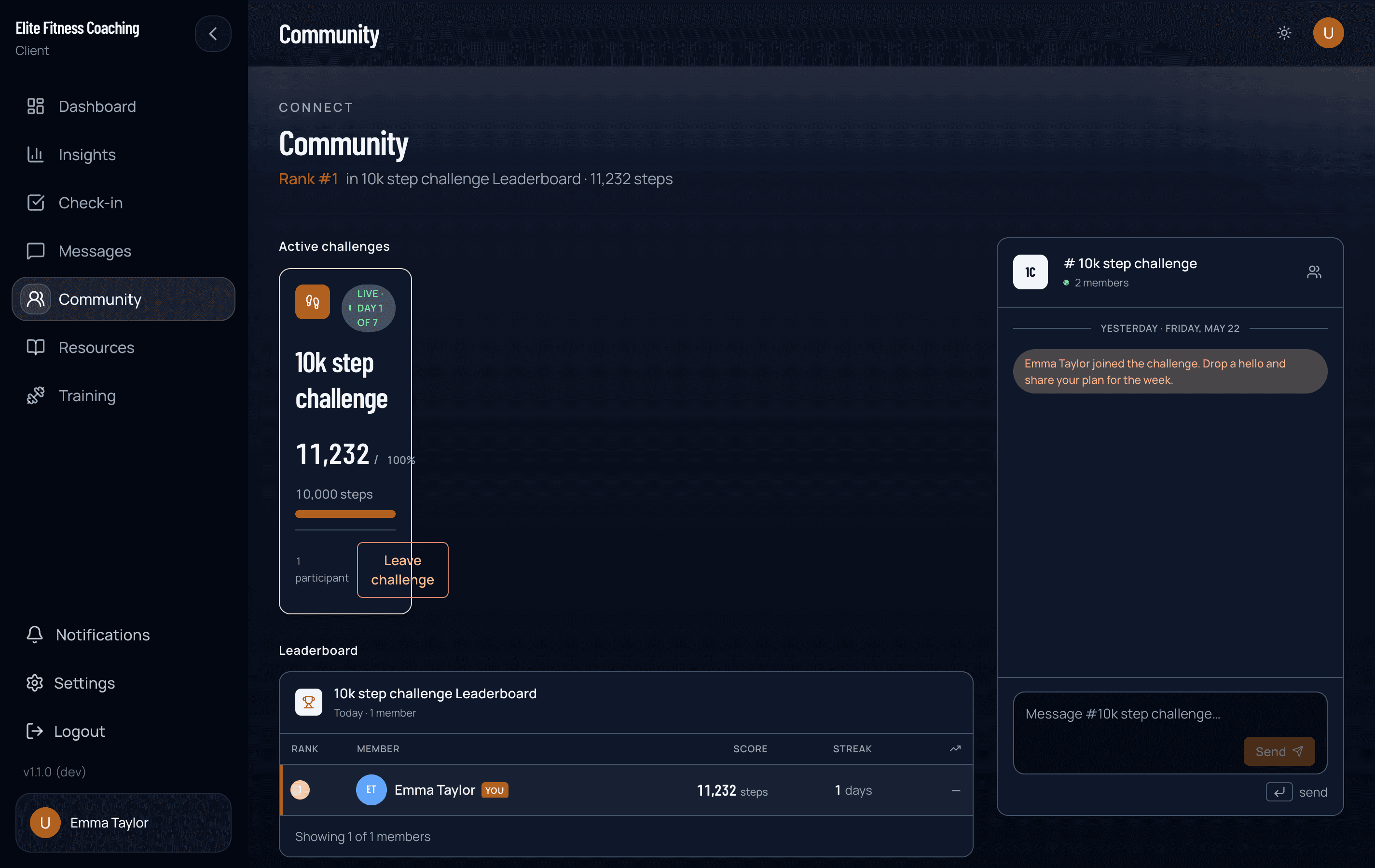
Clients see published challenges on their Community page. They opt-in with Join; their progress starts counting from that moment. They can leave any time via Leave challenge on the challenge card. Leaving removes them from the linked group chat (if any).
Leaderboards
Leaderboards rank participants on a single metric over a window.
Metrics
| Metric | What it ranks on |
|---|---|
| Combined | Weighted blend across multiple data sources |
| Compliance | Macro / nutrition adherence over the window |
| Challenge points | Total points earned across active challenges |
| Steps | Sum of daily steps |
| Workout streak | Longest consecutive-day workout streak |
| Cardio minutes | Total cardio minutes logged |
| Weight logging | Number of weigh-ins |
| Macro compliance | Per-macro adherence % |
Default leaderboard selection
The hub shows the newest active leaderboard on load. If you select a different one, the selection is remembered per device (in localStorage) — but only for that device, so a coach picking a different default at home won’t change what they see in the office.
Visibility
Leaderboards are visible to everyone in the workspace by default. There are no per-leaderboard access controls in this release — if you need a private leaderboard, scope it via challenge membership (only joined participants count) rather than visibility.
Permissions
| Action | Who can do it |
|---|---|
| Create team chat | Admin coaches only |
| Create challenge | Admin coaches only |
| Create leaderboard | Admin coaches only |
| Send messages in a chat | Any member |
| Join / leave a challenge | The participant themselves |
If you’re a non-admin coach, you see the Community page but the New chat and New challenge buttons are hidden.
Notifications
- New challenge published → clients with push on in the mobile app can get a lock-screen alert
- Unread activity still shows as badges in the app navigation
- Leaderboard digests by email or recurring push are not sent today
See Notifications for what push covers and how to turn it on.
On the client side
Clients see all of this on their own Community page (/client/community):
- Join / Leave challenges
- View leaderboards and their own rank
- Open team chats they’ve been added to
- Refresh standings to force a recompute after logging activity
See For Clients → Community for the client-facing walkthrough.
Etiquette and limits
- No per-message character limit; very long messages render as scrollable blocks
- Audio messages don’t exist in team chats (direct-only)
- A client removed from a team chat retains read history but can’t send new messages
- A deleted client account is removed from leaderboards and challenges automatically
- Challenges can’t be edited once published — to change targets, cancel and recreate