Exercises
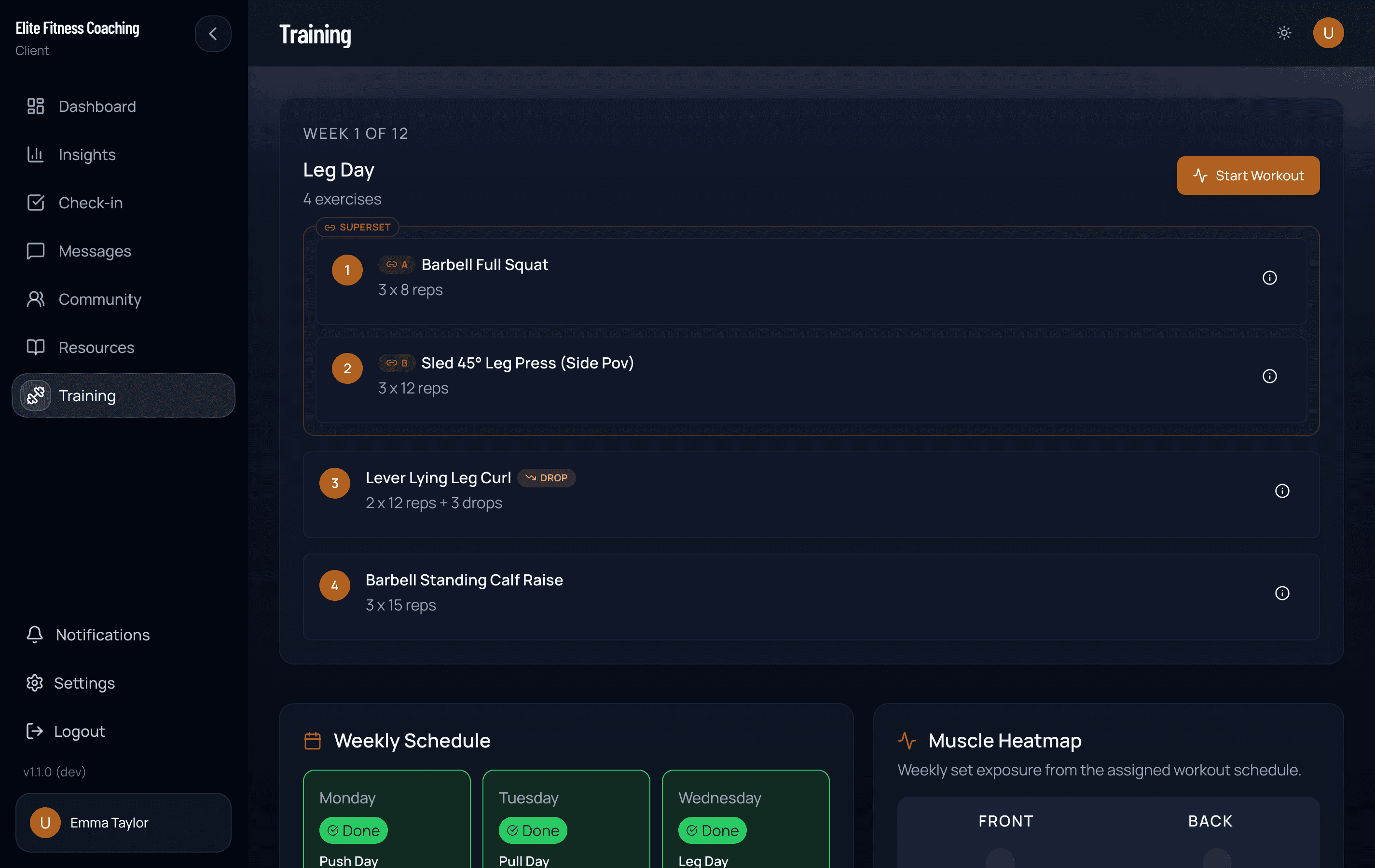
Your coach assigns programs from their workspace; you see them on the Exercises page. Each workout day lists the exercises with target sets, reps, and load.
The page also shows a weekly muscle heatmap so you can quickly see which areas your assigned schedule is emphasizing.
The week strip and Month view track each scheduled week separately. Finishing a workout in one week will not mark the same weekday in the next week as already logged.
While working out:
- Before starting, use the readiness check to share how recovered you feel. On a periodized workout, a low score can make that day’s effort target easier. On any program, a low score keeps that session from changing future progression targets; non-periodized workout targets otherwise stay the same
- Tap a set to log actual weight and reps
- If your coach uses a periodized program, Stop at RIR is the main instruction. Stop when you have that many good-form reps left, even if you finish outside the programmed rep range. The reps field shows the programmed range, which guides progression but is not a required stopping point. There is no separate RIR field. Marking a set AMRAP tells the app you went to failure
- The previous workout’s data shows alongside so you know what to beat
- Your next load stays the same while you build reps through the programmed range. Consistent performance near the top of the range can raise a future target automatically; there is no confirmation prompt
- Mark sets complete as you finish them
- When an exercise has a rest period, a full-width timer stays visible beneath the workout header. When rest ends, supported phones provide a haptic cue and the timer shows which set to start next
- On a periodized workout, the app considers the prescribed effort, rest, logged performance, and normal set-to-set fatigue when adjusting any remaining load targets. Bodyweight and zero-load movements are left unchanged. If a weight-change notice appears, choose Don’t show this session below the message to hide further notices until you close the app
- Add or remove sets if you go off-script
For periodized programs, open an exercise and tap Why this target? to see how the current phase, rep range, target RIR, estimated strength, and readiness check shaped that workout’s target. When enough exercise-specific strength data and a target load are available, it also shows a secondary estimate tied to the prescribed weight, such as Estimated at 150 lbs: ~10 reps. This estimate provides context and is not the stopping target. Otherwise, the app tells you when it is still using your coach’s starting weight while it gathers reliable data.
After a completed workout changes an estimated max or sets a new all-time estimated max, the Exercises page shows a progression update. An all-time best reflects your strongest logged performance. The estimate used for future targets adjusts gradually, helping avoid sudden load jumps after one workout. Estimated strength helps shape periodized targets, while double progression controls the normal workout-to-workout load: build reps into the top part of the prescribed range, then add weight. The app looks across your completed working sets rather than requiring a perfect result on every set. When a recent reliable performance shows that your estimated strength is catching up, the next target also respects that demonstrated performance instead of dropping back to an outdated lighter estimate. When it checks whether your estimated max still matches reality, it reads your first two working sets and keeps whichever one you were strongest on — so ramping up and going heavier on your second set still counts. Later sets are left out because fatigue has already set in by then. Repeated difficulty can trigger a small reset, while planned recovery work and other non-comparable sessions are kept from affecting normal progression.
Warmup sets
If your coach has prescribed warmup sets, they appear above the working sets with an amber “Warm” badge in place of the AMRAP toggle. Each warmup row’s weight is calculated as a percentage of the first working set’s available load, using the current workout or your workout history when available. If there is no working-weight history or prescribed load yet, the weight stays empty for you to enter.
Log warmups the same way as any other set — tap to enter weight and reps, then mark complete. Warmups don’t count toward completed-set or rep totals, and they never affect PRs, estimated strength, or progression. Their completed weight × reps does contribute to total training volume. During a deload week, warmups are hidden automatically.
Open an exercise’s recent history during a workout to compare what you logged previously. The first warmup set appears alongside the working sets for load context; additional ramp sets stay hidden, and warmups still do not affect the PR or RIR summary.
Time-based exercises
Some exercises (cardio gear, isometric holds) track duration instead of weight × reps. You’ll see a single mm:ss input in place of the weight + reps columns, with a placeholder showing the target time (e.g. 10:00). The header reads DURATION | DONE instead of WEIGHT | REPS | DONE.
To log, type the time in mm:ss form (bare numbers parse as seconds) and tap the complete button. AMRAP and drop steps aren’t shown for duration sets — they don’t apply.
Duration rows also stay separate from the previous-session weight and reps comparison. If a set changes between duration and weight × reps, the neighboring strength sets still compare with the matching strength sets from your last session.
Recent exercise history shows the time you logged for duration sets, such as 2:05, instead of empty weight and rep values.
Supersets, circuits, and for-time sections
If your coach paired two or more exercises into a superset, circuit, or for-time section, you’ll see them grouped with a label and A / B / C station badges. Work stations in order — finish a set of A, then B, then C, then back to A for the next round when the section has more rounds. Once you mark a set complete, the app shifts focus to the next station so you don’t have to scroll around.
For-time sections show a stopwatch (and an optional time cap). Finish all stations before the cap when you can; if the cap hits first, the app records a capped result and keeps the work you already logged.
Distance stations (runs, rows, sleds) ask for distance instead of weight and reps — enter what you completed and mark the set done.
Duration holds and distance stations do not change your strength progression or estimated maxes.
Drop sets
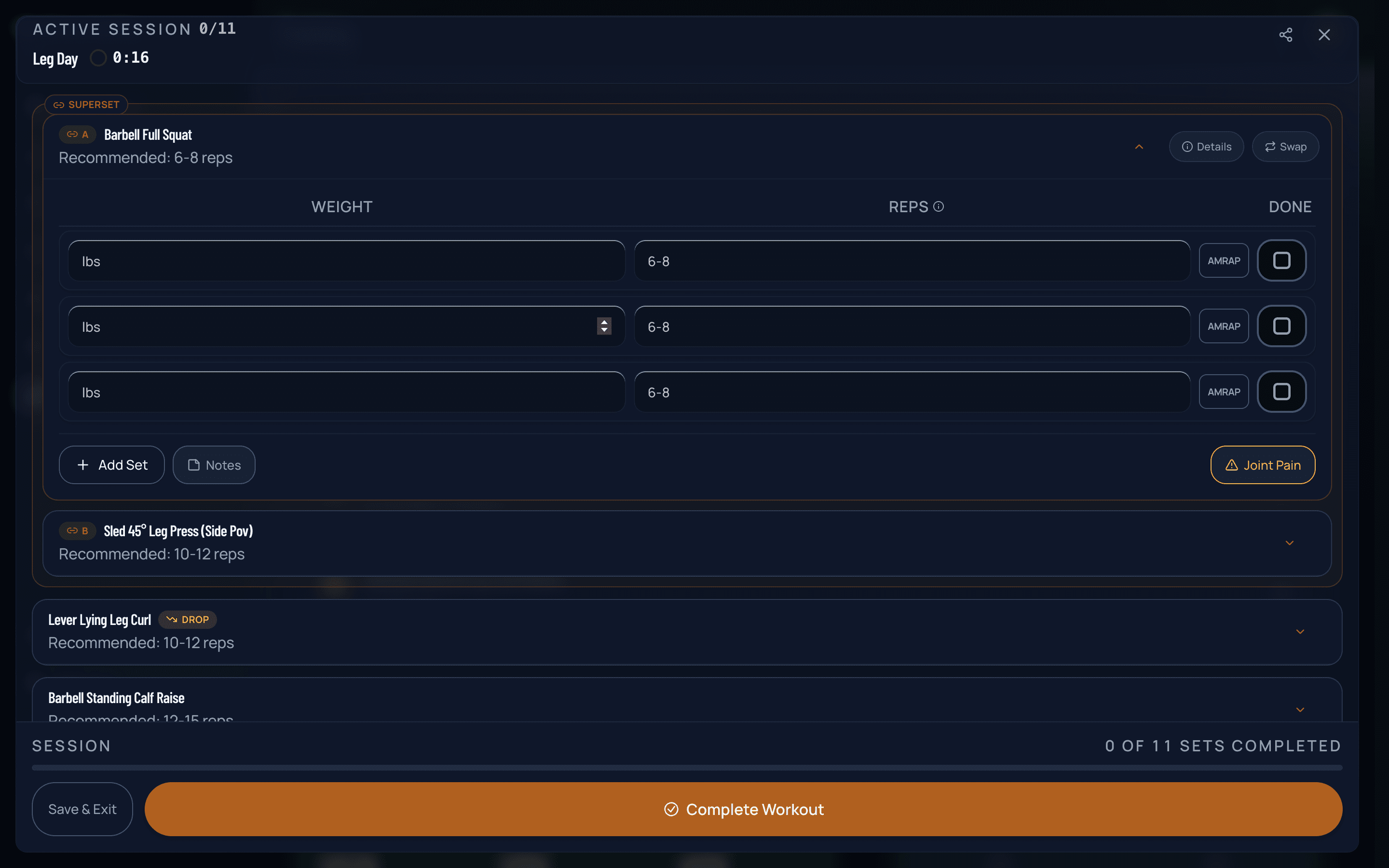
When your coach has programmed a drop set finisher, the parent set gets a stack of smaller “D1 / D2 / …” rows underneath it. The flow is:
- Log and complete the top set as normal.
- Drop the weight as prescribed (the placeholder shows the recommended drop — either an absolute weight or a percent reduction from your top set).
- Bang out the drop reps to failure or to the target reps.
- Tap the check on each drop step to mark it done.
Drop steps stay editable even after you’ve checked off the parent set, so you can fill them in after performing the drops without un-completing the top set.
Notes per exercise
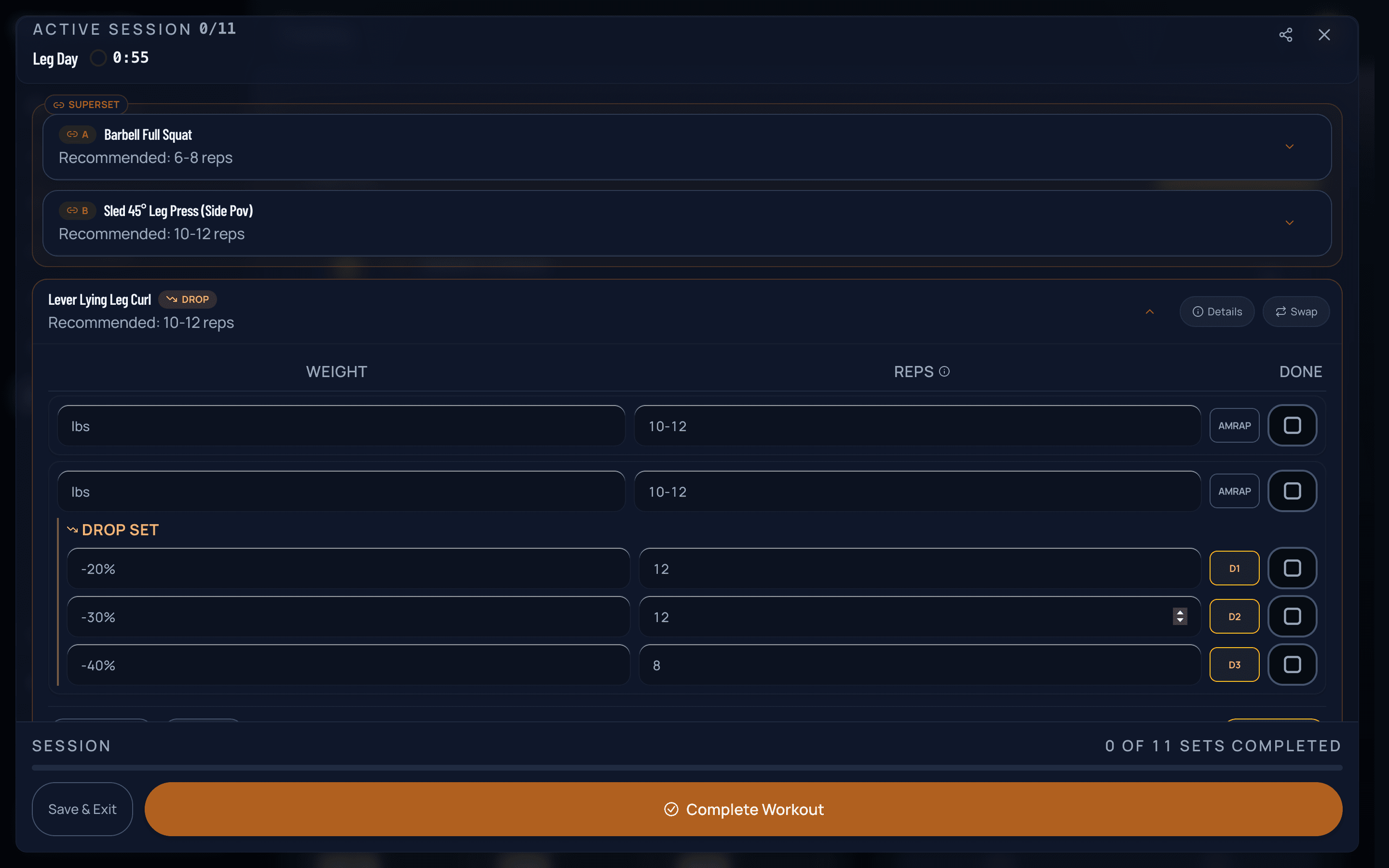
Each exercise has a Notes button in the footer. Tap it to expand a textarea where you can jot a note for that session — form cues, how it felt, weights to chase next week. The button highlights while the textarea is open, and a small dot sits next to the label whenever that exercise already has a note — so you can tell at a glance which exercises you’ve written on without opening each one. Notes from your previous session for the same exercise are pre-filled so you can see what you wrote last time and edit or keep it. Cleared notes stay cleared (no re-prefill). Notes save when you finish the workout and persist with the rest of that session’s log; they don’t change the program your coach assigned.
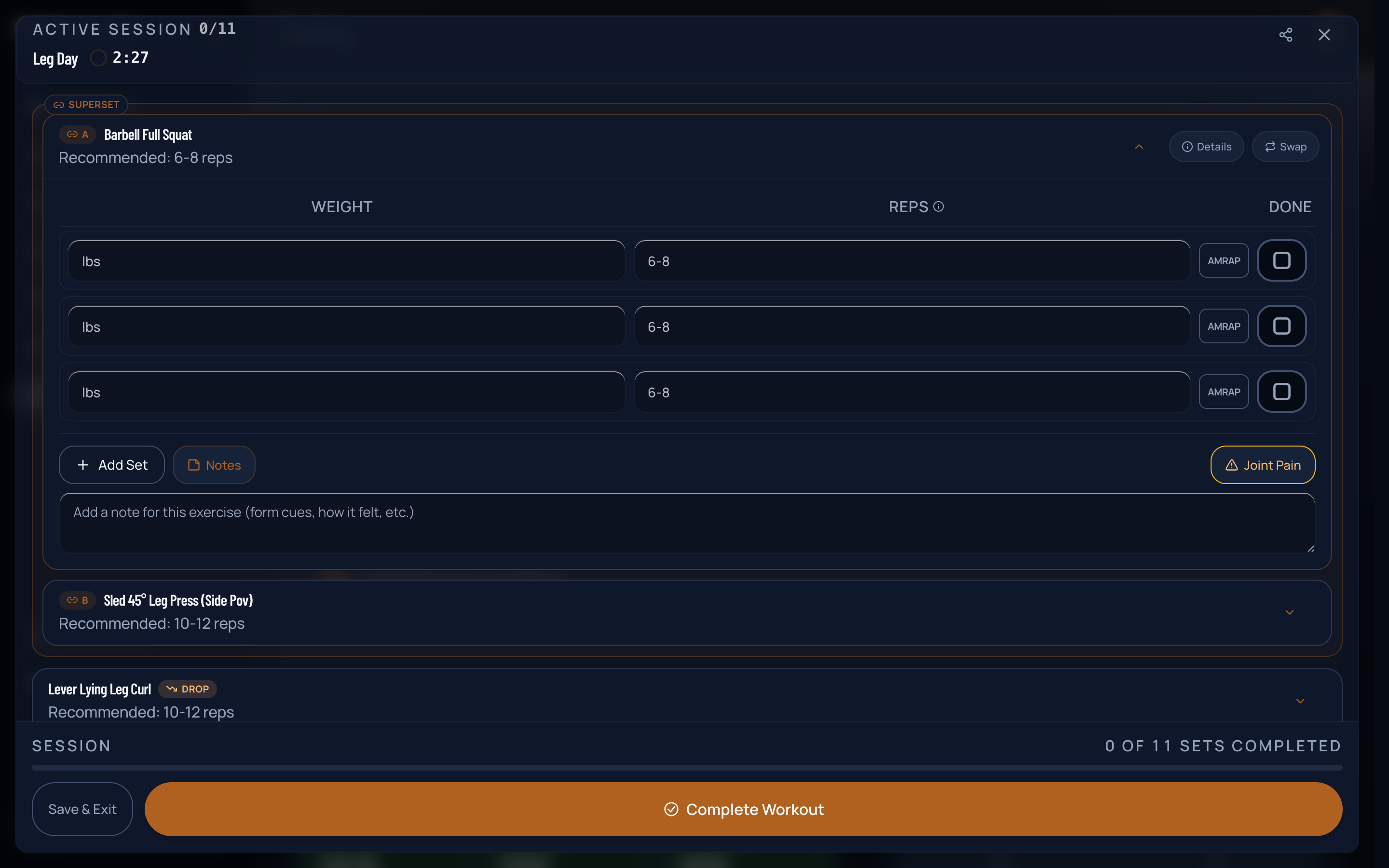
The workout is saved as you go. If you background the app mid-session, it opens back into the workout without asking you to resume. An active rest timer keeps counting while the app is away and reappears at the correct time when the workout returns. Older saved sessions can still be resumed from the matching workout day, or discarded so you can start fresh. Notes and drop progress are part of the auto-save, so closing and reopening doesn’t lose them.
Coach-logged sessions
If your coach trained you in-person and logged your sets from their device, you’ll see a banner on the Training page: “<Coach> logged a workout for you.” Tap it to open the review screen, look over what they typed, and tap Submit workout to commit it to your history. Not now keeps the session pending until you’re ready (up to 6 hours).
While a coach-logged session is waiting for review, its review banner appears alongside any saved workout draft so you can choose what to handle first.
Sharing a workout
When you finish a workout — whether you logged it yourself or submitted a coach-logged session — you’ll see a Share option. It generates a clean image summary of the session (workout name, exercises, set/rep totals, top muscle groups) that you can post to social or send to a friend through the native share sheet (iOS, Android) or your browser’s share menu. Completed timed sets count toward the exercise and set totals, but do not add reps or weight-based volume.
You can regenerate that summary later for any completed session:
- On the Exercises page, open a day that shows as Logged and tap Share
- Or open Month, find a completed day, and tap Share on that cell
The image is rebuilt from what you logged for that session, so it still works after you leave the page or refresh.